Single Line
Focuses on one horizontal line. This is the most stable choice for following a sentence or sign.
PinyinIQ complete guide
Learn how to scan live Chinese, freeze a stable result, import a document, correct readings, use the dictionary and keep everything organised.
Start with Live LensQuick answer
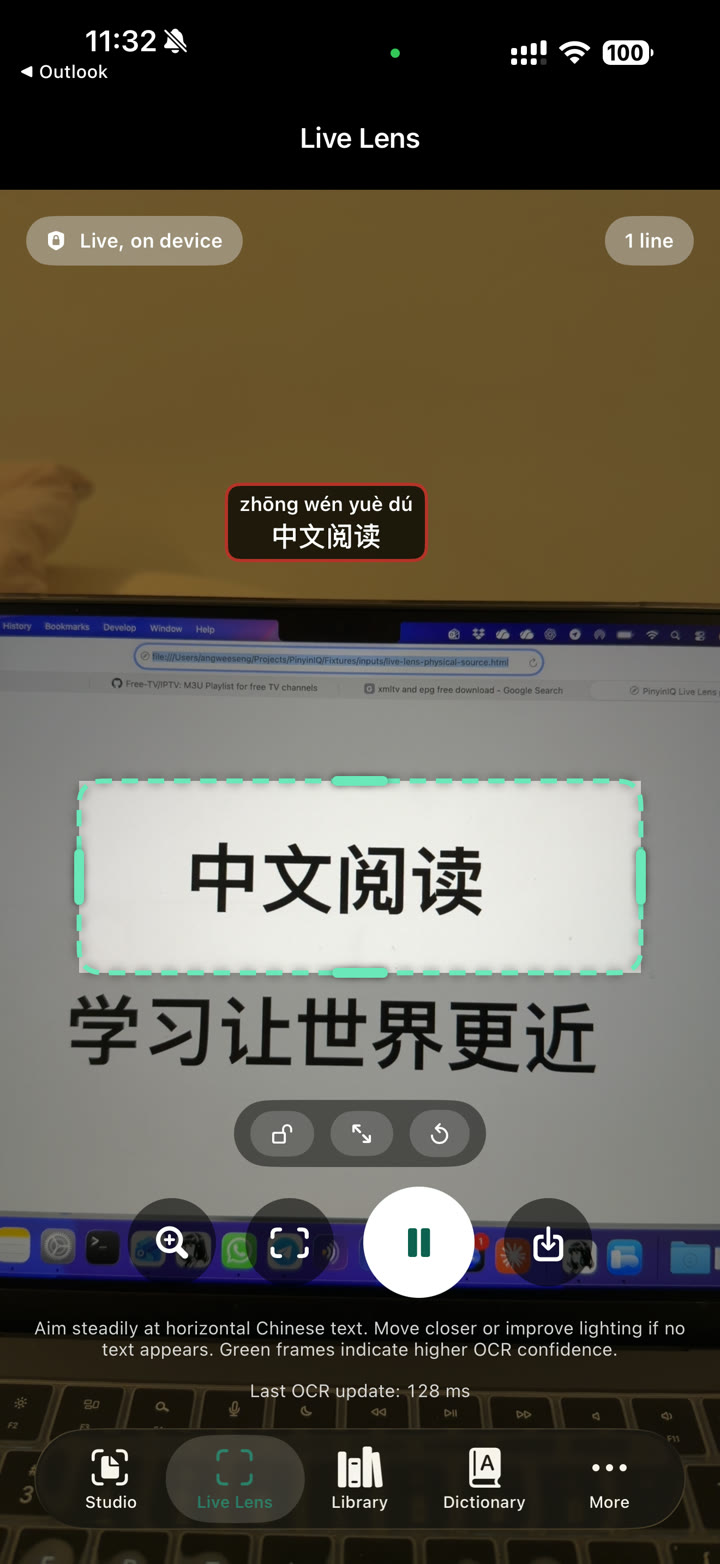
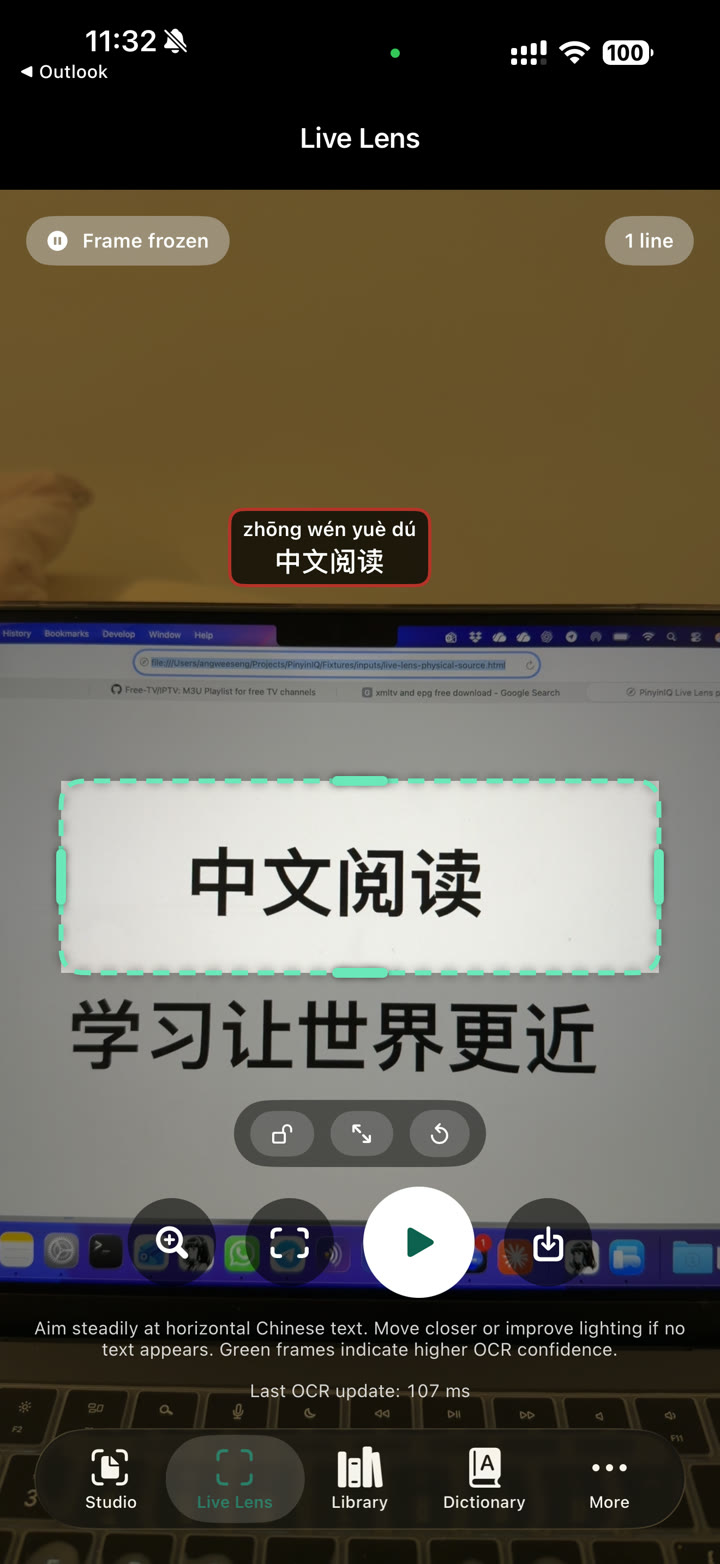
Live Lens continuously rechecks the camera view. Freeze stops the updates so the characters and pinyin remain still while you read.
Live Lens
While Live Lens is active, it keeps recognising the current camera view. Small changes in angle, focus, lighting or the words inside the frame can produce a new reading, so the overlay may move while the camera is live. This is expected. Freeze the frame when the result you want appears.
Paragraph mode
Paragraph mode is designed to recognise several nearby lines. Use this sequence whenever the overlay is difficult to follow.
Tap the frame mode control and choose Paragraph. Use Single Line instead when you only need one line.
Move or resize the focus area so it contains the paragraph and as little unrelated text as possible.
Keep the device parallel to the page, fill the frame with clear print and avoid glare or shadows.
The pinyin may move while the live view is being refreshed. Watch for the words and line order you want.
Tap the large centre pause control. Confirm that the status changes from “Live, on device” to “Frame frozen”.
Read the stable pinyin, tap a word for details, or save the capture to Library. Tap Resume when you are ready to scan again.
Focuses on one horizontal line. This is the most stable choice for following a sentence or sign.
Captures several adjacent lines. Freeze the frame before you begin reading or checking the result.
Uses the larger camera view. Best for clean, simple layouts with little unrelated text around the target.
If the pinyin keeps moving: tap Freeze first. If the result is incomplete, tap Resume, steady the camera, reduce the reading area or switch to Single Line, then Freeze again.
Studio
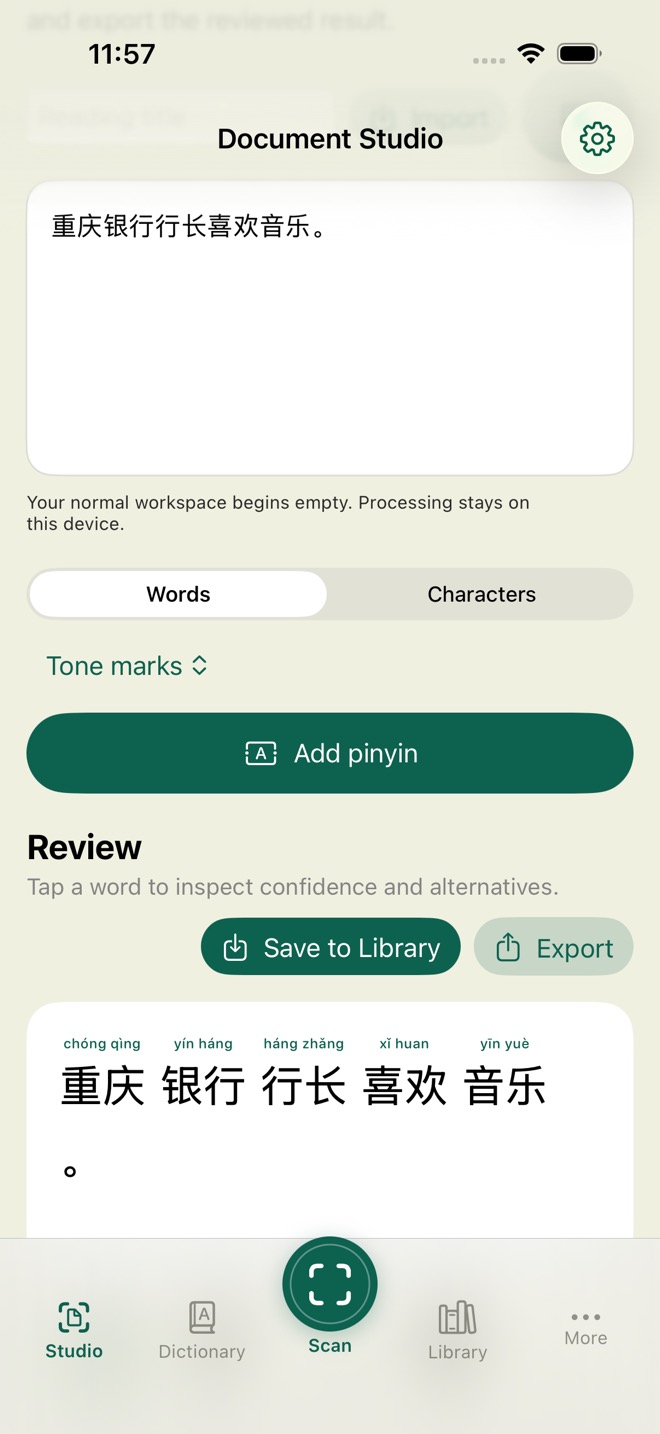
Best practice: use a sharp, straight image with even lighting. For a long or complex document, review it in sections before export.
Dictionary
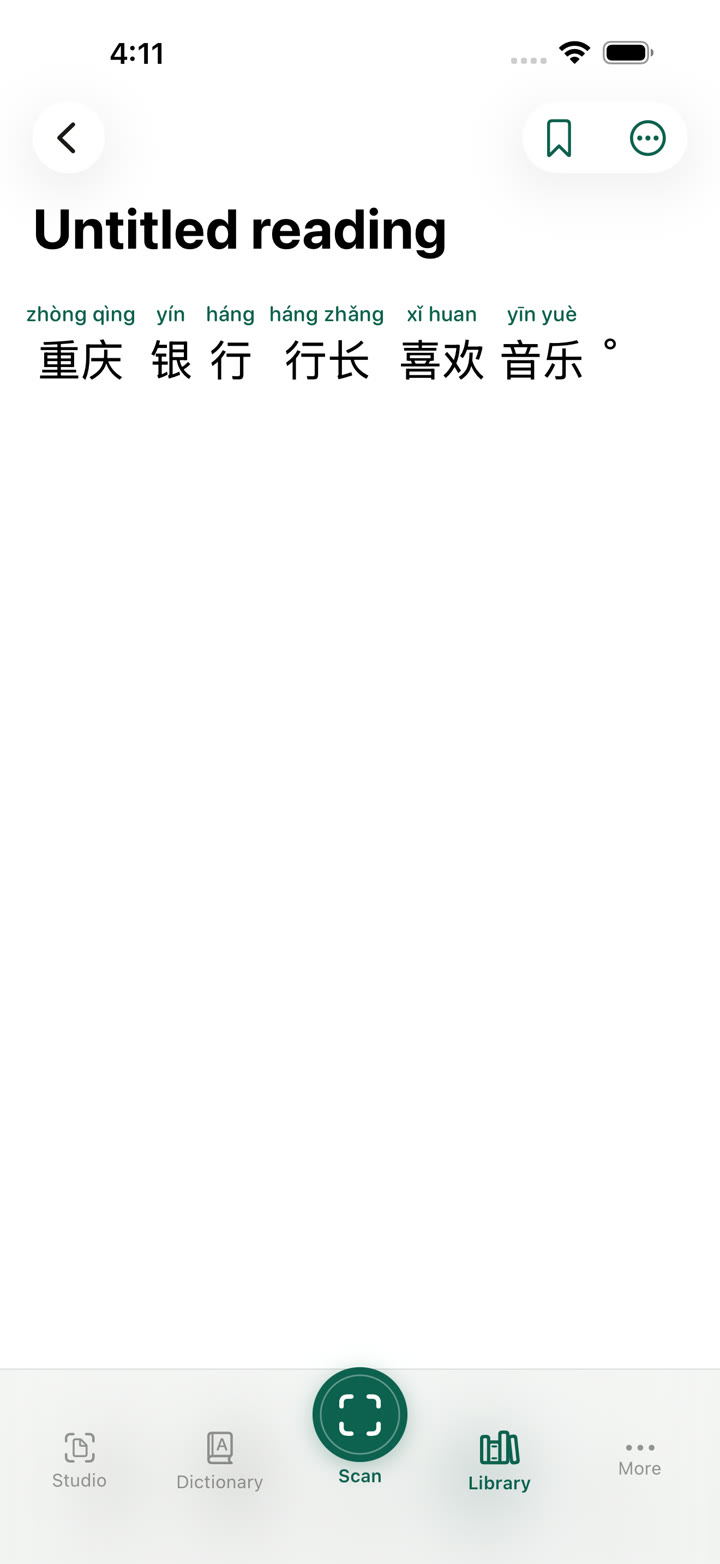
Library and Reader
To delete one item, open its Library section, swipe left on that item and tap Delete. Export anything you want to keep before removing the app.
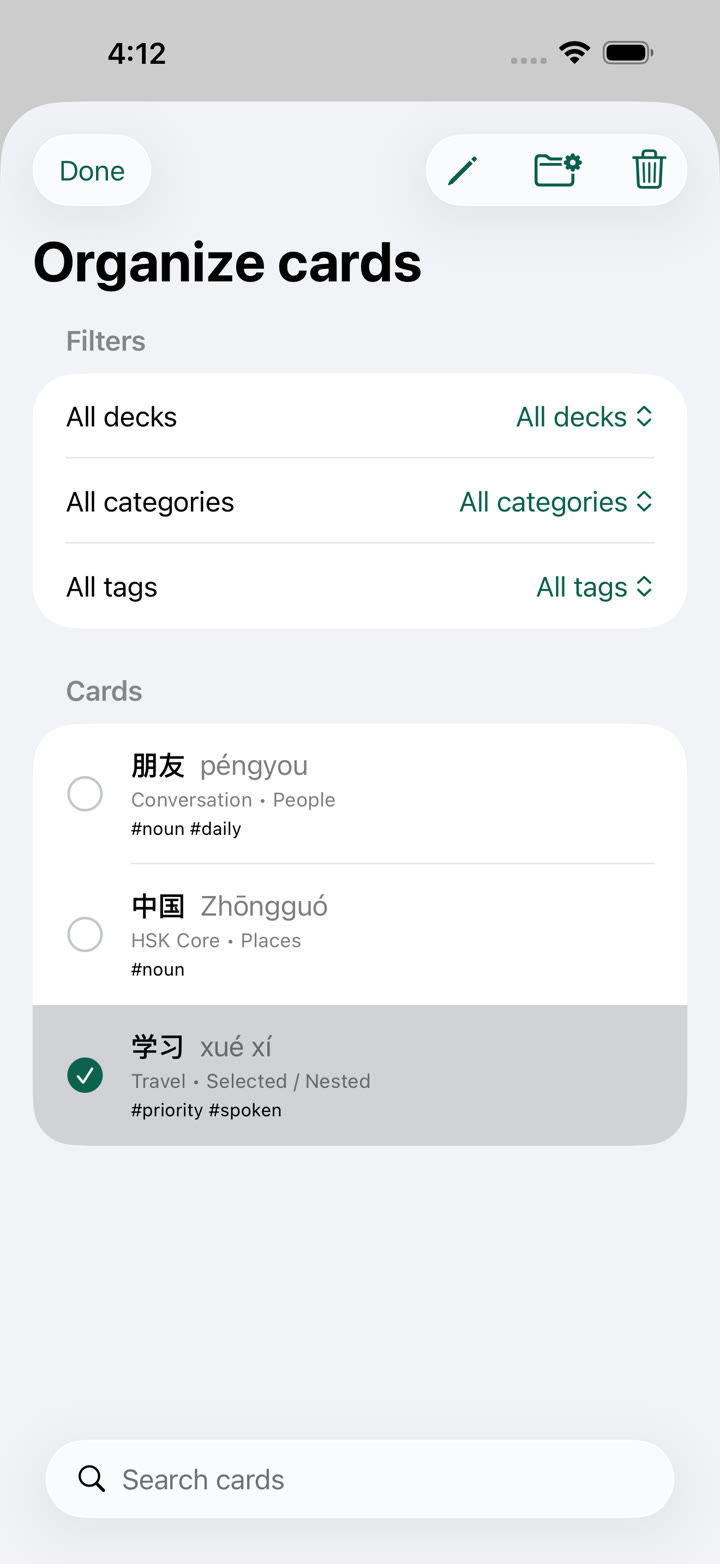
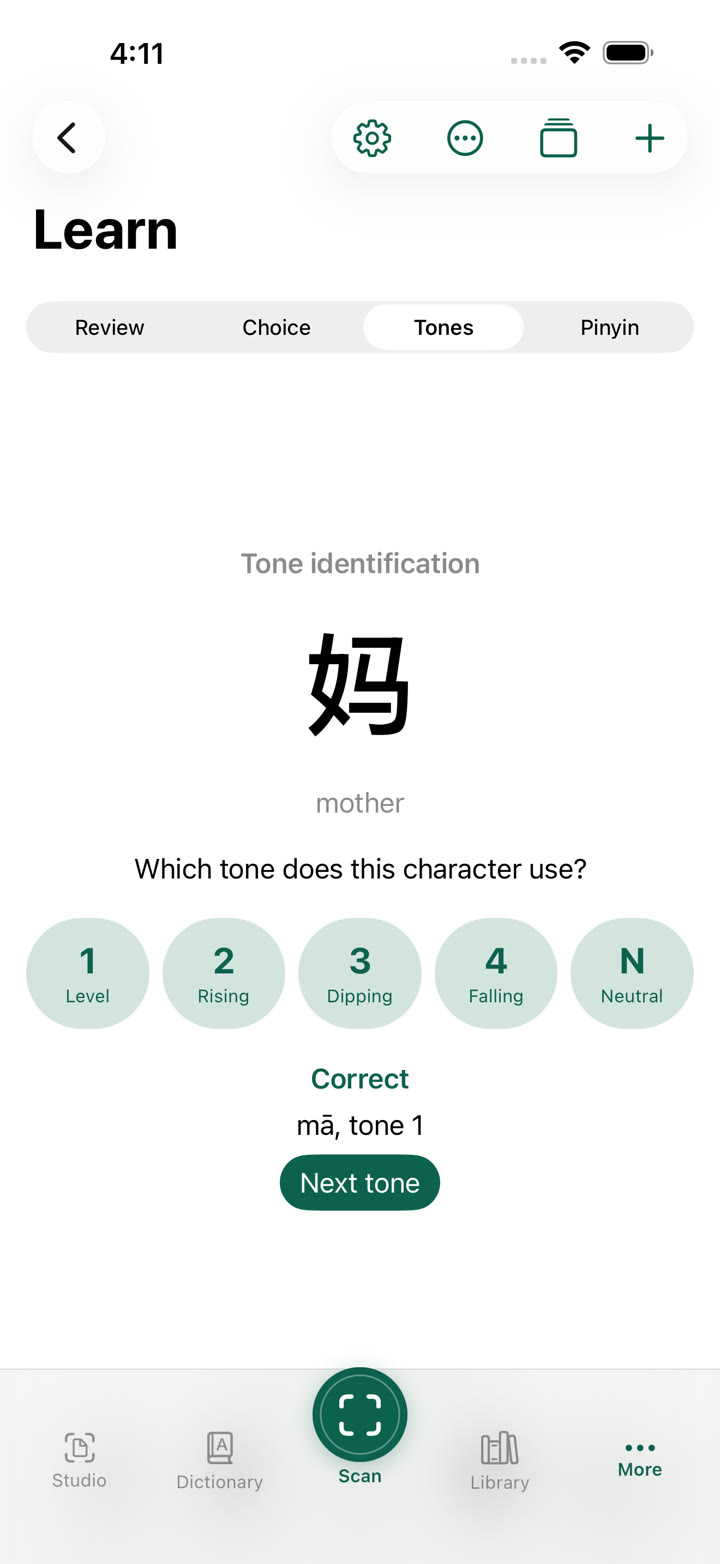
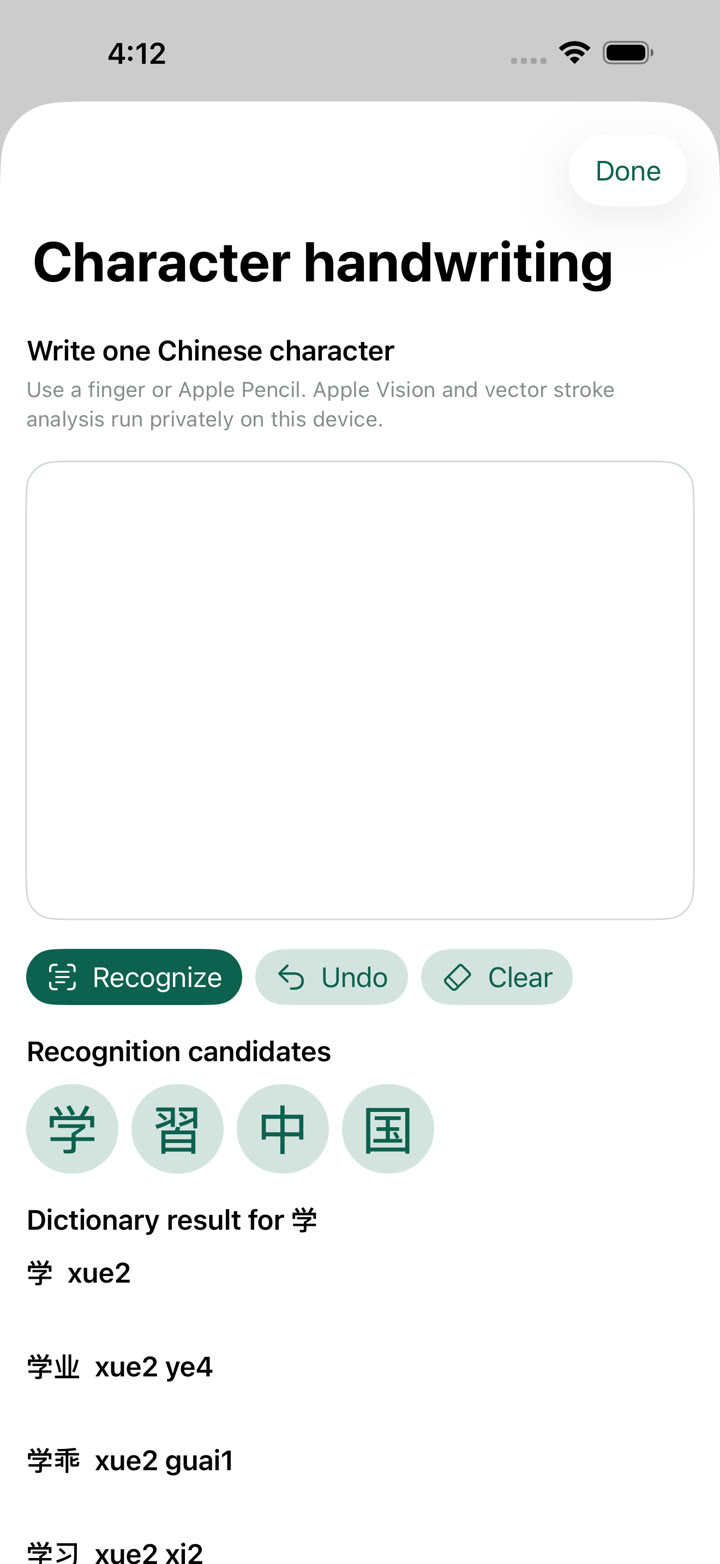
Learning tools
More and Settings
Open More to reach Settings, then adjust how Chinese and pinyin are displayed. The app keeps these preferences on your device.
Adjust Chinese size, pinyin size and line spacing. Turn tone colouring on when colour helps you distinguish pronunciation.
Choose the visual theme that gives you the clearest contrast and most comfortable reading environment.
Review reusable pronunciation corrections for names or special terms. Swipe left to remove an individual correction.
Review local processing, permissions and third-party notices. Core reading features do not require an account.
Quick fixes
This means Live Lens is still refreshing its recognition. Tap Freeze when the desired result appears. For greater stability, hold the device parallel to the page, reduce glare, tighten the focus area or use Single Line.
Move closer, improve lighting and remove unrelated text from the frame. Freeze the best result, then tap a recognised word to review or edit it.
Open iOS Settings, choose PinyinIQ and enable Camera. Return to the app and reopen Live Lens.
Raise media volume and check whether audio is routed to headphones or Bluetooth. The output volume must be above zero.
Try the original file or export it as PDF, DOCX, image, HTML, EPUB or plain text, then import it again.
Need more help?
Visit Support for permissions, deletion and contact guidance, or download PinyinIQ free from the App Store.